Digital Declutter Guide for Overwhelmed Moms
A step-by-step digital declutter guide for busy moms. Clean up your phone, organize photos, hit inbox zero, and audit subscriptions in one weekend.

Here's a confession: last month I looked at my phone storage and I had 47,000 photos. Forty-seven thousand. I had 14,000 unread emails. I was paying for three streaming services I hadn't watched in months. My home screen had 147 apps, and I regularly used maybe 20 of them. My digital life was a disaster, and I didn't even realize it until I tried to take a photo of my son's art project and my phone told me there wasn't enough storage. That was my breaking point. So I spent a weekend doing a full digital declutter, and I'm going to walk you through exactly what I did, step by step. It was honestly as satisfying as cleaning out a closet, maybe more so, because I could do most of it from the couch.
Phase 1: Phone Cleanup
Your phone is the heart of the digital clutter problem because it's always with you, always accumulating, and you never think to clean it out. Let's start here.
Delete unused apps. Open your phone's settings and look at storage by app. If you haven't opened an app in 90 days, delete it. You can always re-download it later if you need it, which you almost certainly won't. Be ruthless. That language app you downloaded in January and used twice? Gone. The three photo editing apps when you only use one? Gone. The game you played for a week last summer? Gone.
On iPhone, go to Settings > General > iPhone Storage. It shows you a list of apps sorted by size and tells you the last time you used each one. On Android, go to Settings > Storage > Apps.
Clean up your home screen. Your home screen should have only the apps you use daily. Everything else goes into folders or the app library. I reorganized mine into five categories: Essentials (phone, messages, camera, browser), Social, Work, Kids, and Utilities. My home screen has one page now. One. The calm it brings is unreasonable.
Turn off notifications for everything except what matters. Go through your notification settings app by app and turn off anything that isn't genuinely time-sensitive. I left notifications on for phone calls, texts, calendar reminders, and my security cameras. Everything else, social media, shopping apps, news, games, gets silent notifications or none at all.
Clear your downloads folder. When's the last time you looked in there? Mine had PDFs from 2023, screenshots of recipes I already made, and random files I couldn't even identify. Delete everything you don't actively need.
Phase 2: Email Inbox Zero
I know. The very phrase "inbox zero" makes some of you want to close this post. But hear me out. You don't have to respond to 14,000 emails. You just need to get them out of the way so you can actually find the ones that matter.
The nuclear option (what I did): Select all emails older than 30 days and archive them. Not delete, archive. They're still searchable if you need them, but they're out of your inbox. This took my inbox from 14,000 to about 200 in under five minutes. Then I spent 30 minutes going through those 200 and actually dealing with them, reply, delete, or save.
Unsubscribe aggressively. For the next week, every time a promotional email arrives, unsubscribe from it instead of deleting it. I unsubscribed from 63 email lists in one week. Sixty-three. Most of them were retailers I bought from once three years ago. Use the unsubscribe link at the bottom of the email, or use a service like Unroll.me to see all your subscriptions at once and mass-unsubscribe.
Set up filters. Create a filter for receipts, a filter for school emails, a filter for newsletters you actually want to read. Gmail and most email providers make this simple. Filters mean emails sort themselves before you even see them.
The 2-minute rule going forward: If an email takes less than 2 minutes to handle, do it right now. If it takes longer, star it and set aside time to handle starred emails once a day. Don't let emails sit in your inbox as a to-do list, that's what your actual to-do list is for.
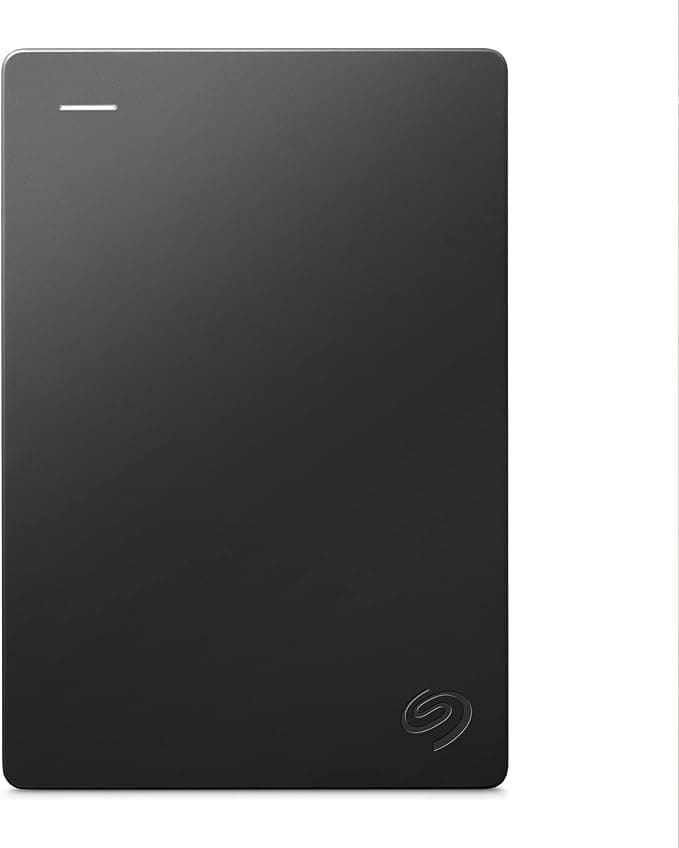
Seagate Portable 2TB External Hard Drive HDD, USB 3.0 for PC, Mac
Back up your photos and important files before you start deleting anything. This portable drive holds up to 2TB, works with Mac and PC, and is small enough to toss in a drawer. Peace of mind before you declutter.
Phase 3: Photo Organization
This is the big one. This is where most of us have the most digital clutter and the most emotional attachment to it. Take a deep breath. We're going to be strategic, not sentimental.
Step 1: Back everything up first. Before you delete a single photo, make sure everything is backed up. Use Google Photos, iCloud, or an external hard drive. I use Google Photos for cloud backup and an external drive for a local copy. Do not skip this step.
Step 2: Delete the obvious junk. Go through your camera roll and delete: duplicate photos (most phones take burst shots and you keep all 47), blurry photos, screenshots you no longer need, photos of things you needed temporarily (parking spot, grocery list, address), and accidental photos of your pocket or ceiling. This alone cleared about 15,000 photos for me.
Step 3: Use your phone's built-in tools. Both iPhone and Google Photos have a "duplicates" or "similar photos" feature that groups near-identical shots so you can pick the best one and delete the rest. Use it. It's faster than scrolling through manually.
Step 4: Organize into albums. Create albums by year, by kid, by event, whatever system makes sense for you. I do albums by year with sub-albums for big events (birthdays, vacations, holidays). It takes time upfront but makes finding photos later so much easier.
Step 5: Set a monthly photo cleanup reminder. Fifteen minutes on the first of every month to delete the junk from the past month. It's way less overwhelming than doing it once a year (or never).
Phase 4: Subscription Audit
This one might actually save you money. Pull up your bank statement or credit card statement and highlight every recurring charge. You will almost certainly find subscriptions you forgot about.
Common culprits:
- Streaming services you don't watch (or forgot you had)
- App subscriptions that auto-renewed
- Free trials you forgot to cancel
- Duplicate services (do you really need Spotify AND Apple Music AND YouTube Premium?)
- Cloud storage you're not using to capacity
- Subscription boxes you stopped being excited about
What I found during my audit: I was paying for Hulu (hadn't watched in 4 months), a meditation app ($12.99/month that I used three times), extra iCloud storage I no longer needed, and a kids' app subscription my youngest had outgrown. That was over $45/month I got back. Over $500 a year I was just throwing away.
Go through your app store subscriptions. On iPhone: Settings > your name > Subscriptions. On Android: Google Play Store > Menu > Subscriptions. Cancel anything you're not actively using. You can always re-subscribe later.
Phase 5: Digital Boundaries Going Forward
Decluttering is great, but it's pointless if the clutter comes right back. Set up some systems to keep things clean.
One in, one out for apps. Download a new app? Delete an old one. This keeps your phone from creeping back up to 147 apps.
Weekly 5-minute sweep. Every Sunday evening, spend 5 minutes deleting photos you don't need, archiving emails, and clearing notifications. It takes almost no time when you do it regularly.
Seasonal subscription check. Every three months, review your subscriptions. Cancel anything you haven't used in the past month.
Intentional downloads. Before downloading a new app, ask yourself: will I use this in a week? If not, don't download it. You can always find it later if you actually need it.
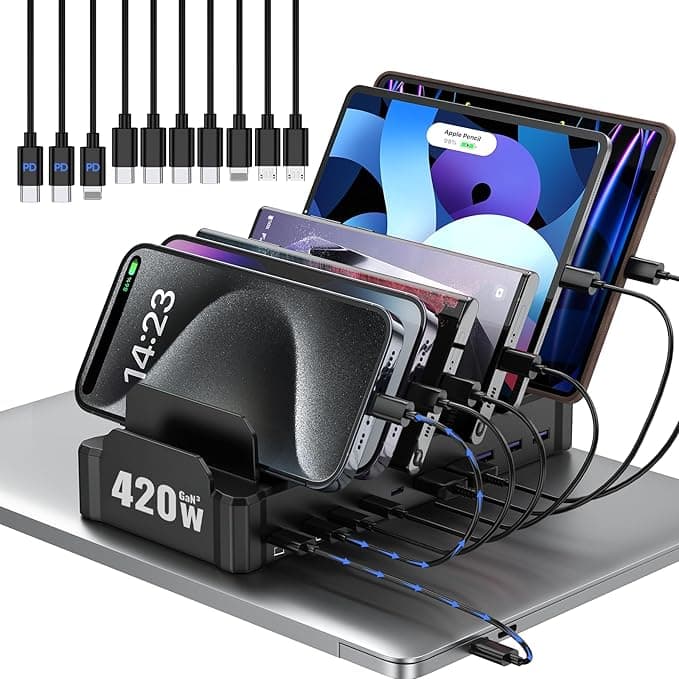
Zobirez 420W 10-Port USB-C Multi-Device Charging Station
A dedicated spot for your phone to charge and stay put. When your phone has a "home," you're less likely to scroll mindlessly. This one charges multiple devices and keeps cords organized.
Your Weekend Declutter Schedule
If you want to knock this out in one weekend, here's how I'd break it up:
Saturday morning (1 hour): Phone cleanup, delete apps, organize home screen, turn off notifications, clear downloads.
Saturday afternoon (1 hour): Email inbox, archive old emails, unsubscribe from lists, set up filters.
Sunday morning (1-2 hours): Photos, back up, delete junk, organize into albums.
Sunday afternoon (30 minutes): Subscription audit, review charges, cancel what you don't use.
That's about 4 hours total, spread across two days, done from your couch with a cup of coffee. And the mental space you'll get back is worth every minute.
You know that feeling when you declutter a room and you just stand there and breathe? That's what a clean phone feels like. Try it.